
How to Choose a NAS for Your Business
The decision you cannot undo later is how many drive bays. Everything else — memory, drives, network — can be changed after the fact. Here is how we size one, and when we tell people not to buy one at all.
Start with bays, not specifications
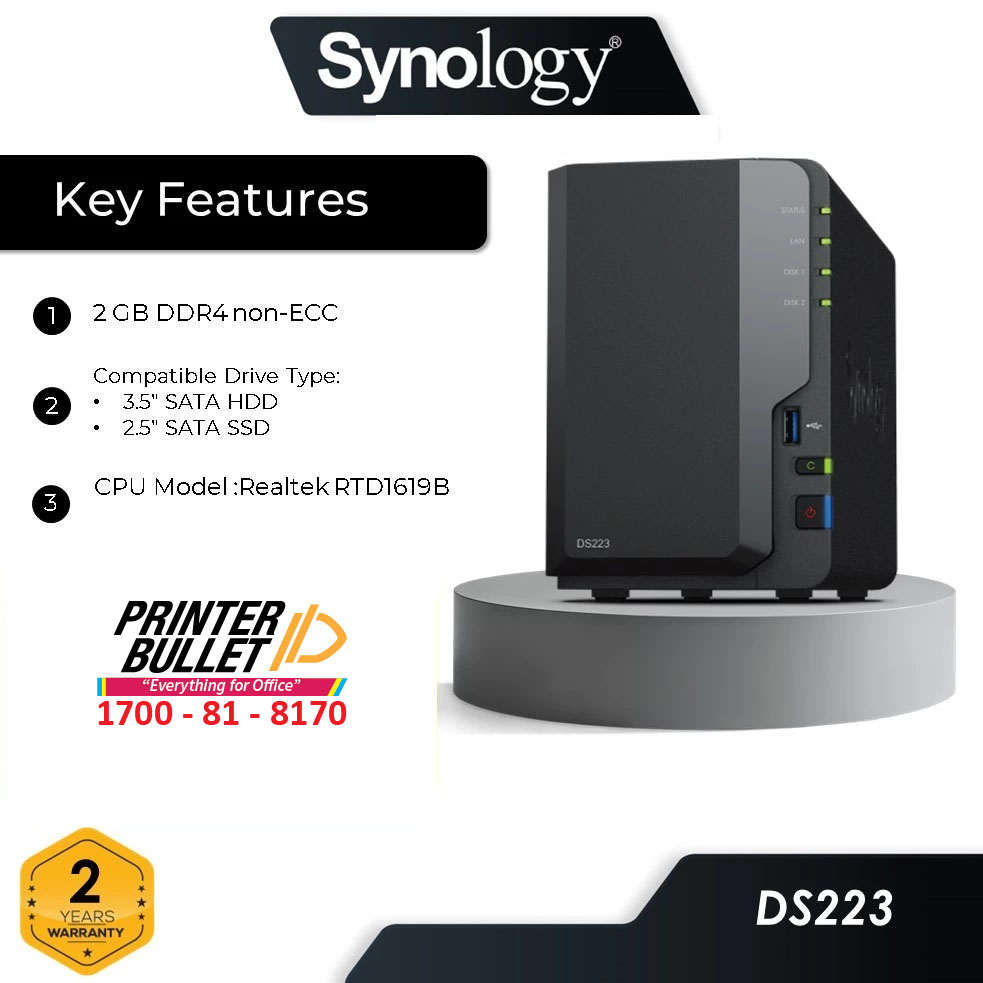
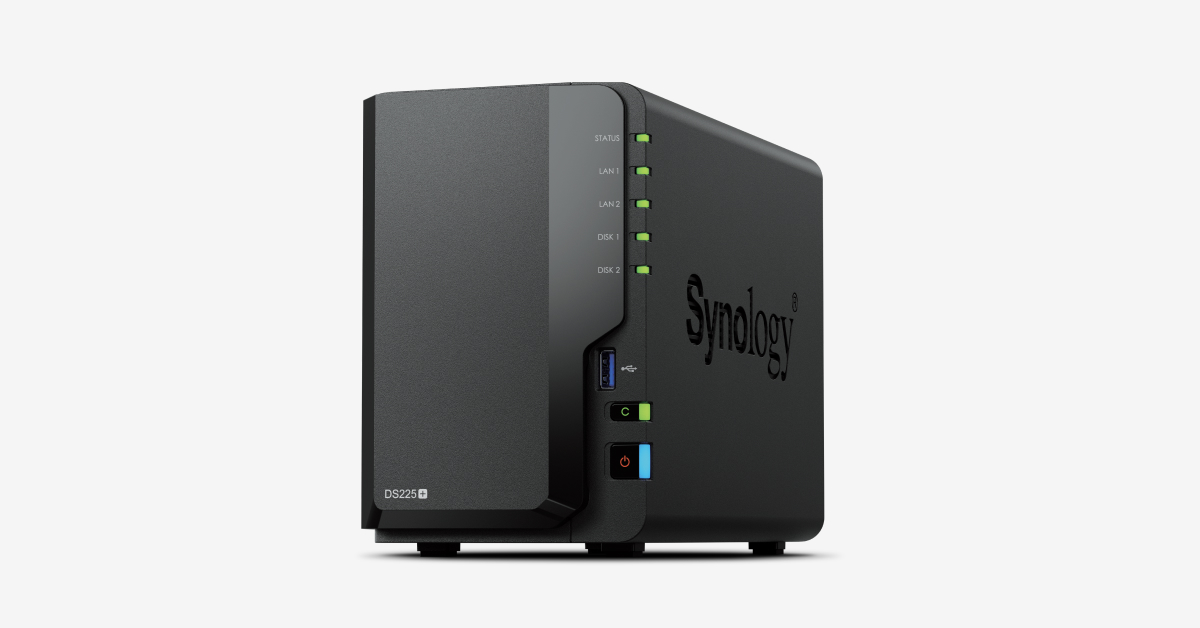
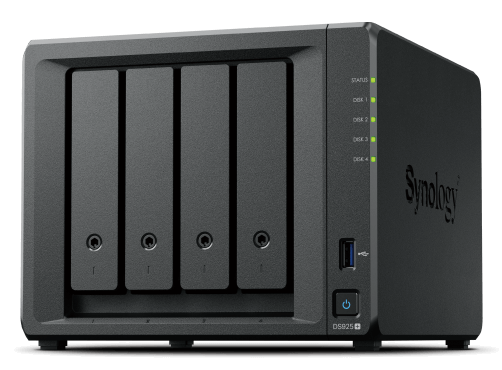
Most NAS buying advice opens with processors and memory. That is the wrong end of the problem. A two-bay and a four-bay unit look almost identical and often sit under RM 1,000 apart — but the difference shows up three years later. You can add memory, swap in bigger drives, add a network card. You cannot add a bay. When a two-bay fills up, you do not upgrade it; you buy a second NAS and migrate everything onto it.
The rule we use: choose the bay count for the data you expect in three years, then buy the smallest drives that make sense today. Growing by replacing drives one at a time is cheap. Growing by replacing the whole box is not.
How many bays do you actually need?
Usable space is never the sum of the drives — at least one drive's worth goes to protection, and on a four-drive array that is a quarter of what you paid for. Work backwards from the space you need rather than the drives you fancy:
- Up to 4 TB usable — 2 bays, 2 × 4 TB, SHR. Grows only by swapping both drives.
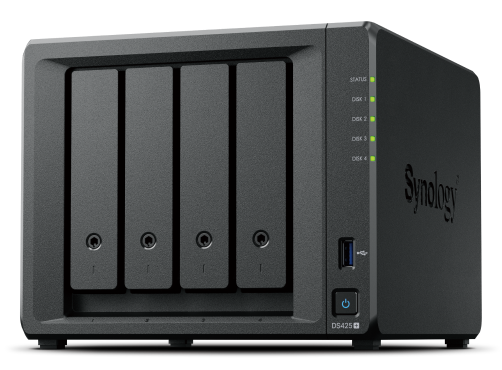
- 6–12 TB usable — 4 bays, 3 × 6 TB, SHR. Leaves one bay free for later.
- 12–24 TB usable — 4 bays, 4 × 8 TB, SHR. Full, so growth means bigger drives.
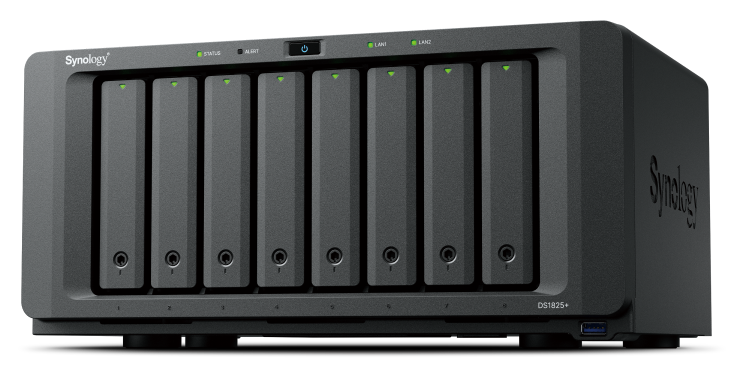
- 24–50 TB usable — 5 to 8 bays, 8–12 TB drives, SHR-2. Add drives as you go.
Those are starting points, not answers. Work out your own figure with our RAID calculator, which handles mixed drive sizes and shows exactly what protection costs you.
Which protection level?
On a Synology, SHR is the sensible default. It survives one drive failing, and unlike standard RAID it lets you mix drive sizes without throwing away the difference — four drives of 8, 8, 4 and 4 TB give you 16 TB under SHR against 12 TB under RAID 5.
Move to SHR-2, which survives two failures, once you have five or more large drives. With 12 TB and larger drives a rebuild runs for days, and a second failure inside that window is not rare enough to gamble on.
Avoid RAID 0 for business data entirely. It is not a protection level; it is the absence of one, and a single drive takes the whole array with it.
Drives: the part people economise on and regret
Desktop drives are built on the assumption they spend most of the day idle. A NAS spins them constantly, and the vibration of four drives in one chassis is a workload they were never rated for. NAS-rated drives — Synology HAT, WD Red, Seagate IronWolf — cost roughly 15% more and are designed for exactly this.
Where you can, buy drives from more than one production batch. Drives from the same batch tend to fail at around the same time, which is precisely when you need the other one still alive.
Memory, network and the things you can add later
- Memory matters if you run virtual machines or Synology Drive for a lot of users. It is upgradable later, so do not overspend on day one.
- 2.5GbE or 10GbE only helps if your switch and the PCs support it too. Most offices are still gigabit end to end, where the drives are not the bottleneck anyway.
- M.2 cache earns its place with virtual machines and heavy random access. For ordinary file sharing it usually changes nothing anyone would notice.
RAID is not a backup, and neither is a NAS
RAID keeps you working when a drive dies. It does nothing about ransomware, a deleted folder, a failed migration, a fire or a theft — every one of those reaches all the drives at once, because they are all in the same box in the same room.
Whatever you buy, budget for a second copy somewhere else: another site, or cloud storage such as Synology C2. That is what the 3-2-1 rule describes, and it is the part that actually saves companies. A NAS with no second copy is a single point of failure with better specifications.
When a NAS is the wrong answer
- Your people are mostly out of the office. A NAS can be reached from anywhere, but your office upload speed becomes everyone's ceiling. Cloud storage is often simpler and faster for a travelling team.
- Two people and 500 GB. An external drive plus a cloud sync is cheaper and entirely sufficient. We will tell you so.
- Nobody will watch it. A NAS with a failed drive that nobody noticed is a single drive with extra steps. If no one will check it, put it under a maintenance contract or do not buy it.
What we do beyond selling you the box
We size it against how much your data actually changes rather than how much of it there is, build the RAID and volumes, configure Active Backup for your servers, PCs and Microsoft 365, set up replication to a second site or to C2, and restore something real in front of you before handover. If you want it afterwards, we monitor the array and the backup jobs under a maintenance contract — so a failed drive becomes a job ticket instead of a discovery.
Products
Frequently asked questions
How many drive bays do I need?
Choose the bay count for the data you expect in about three years, not today. Memory, drives and network cards can all be upgraded later; bays cannot. As a rough guide, two bays suit a small team under 4 TB usable, four bays cover most offices up to about 24 TB, and five or more make sense past that.
SHR or RAID 5?
If every drive is the same size they give the same usable capacity, so it does not matter. SHR wins when drive sizes differ — 8, 8, 4 and 4 TB give 16 TB under SHR against 12 TB under RAID 5 — and when you plan to grow by replacing drives one at a time.
Can I use ordinary desktop hard drives?
You can, but they are rated for a workload a NAS does not give them: constant spinning and vibration from neighbouring drives. NAS-rated drives cost around 15% more and are built for it. For anything holding business data, use them.
Is a NAS a backup?
No. A NAS with RAID survives a drive failing. It does not survive ransomware, a deleted folder, a fire or theft, because all the drives are in one box in one room. You still need a second copy elsewhere — another site or cloud storage such as Synology C2.
Do you install and configure it, or just supply it?
Both. We size it, build the RAID and volumes, configure Active Backup for servers, PCs and Microsoft 365, set up off-site replication, and run a real restore in front of you before handover. It can then sit under a maintenance contract with monitored backups.
Not sure which fits your site?
Tell us the environment — we'll size it and send an itemised quotation within one working day.